Prepare me for this job
The prep workflow is the organizing feature of Supercharger: a job posting becomes the unit of study, and tracks become the building blocks a prep assembles.
This is also where Supercharger works as a support-team enablement tool. A posting is just one input; the same workflow can map a new product surface, customer segment, or recurring support issue into concrete practice.
Workflow
Section titled “Workflow”-
Save the posting. In the app: New job prep → name it (e.g.
acme-tse) → paste the full posting → save. This writespreps/acme-tse/job-posting.md.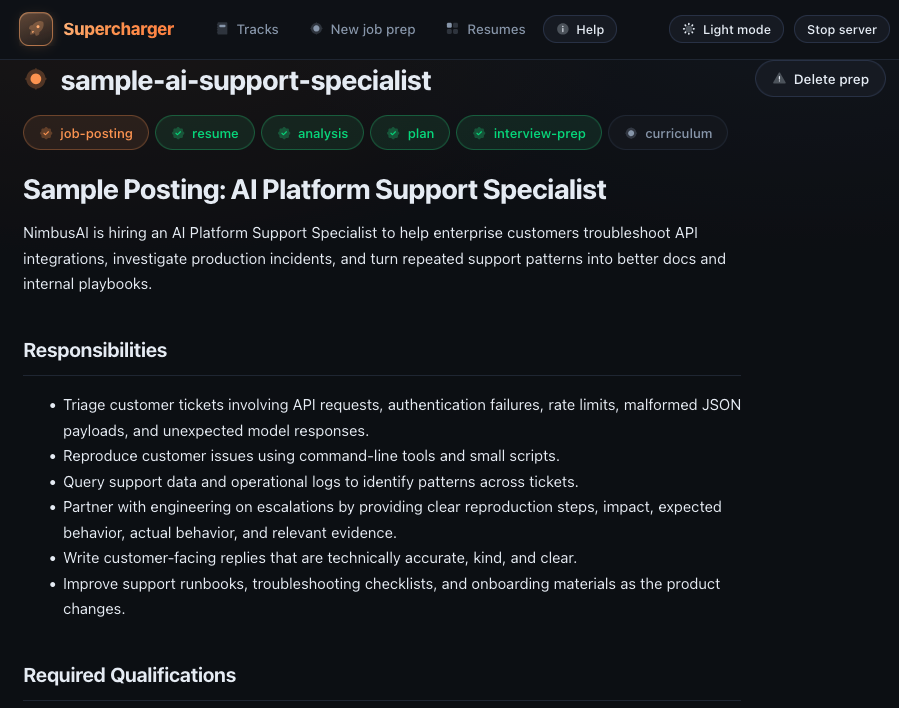
Optionally attach a resume from the chooser on the same screen: pick a saved resume from the library, paste one for this prep only, or skip it. Attaching a resume enables the gap analysis - the assistant marks each requirement as covered by your experience vs. a genuine gap, and prioritizes tracks accordingly. The resume is copied into
preps/acme-tse/resume.md.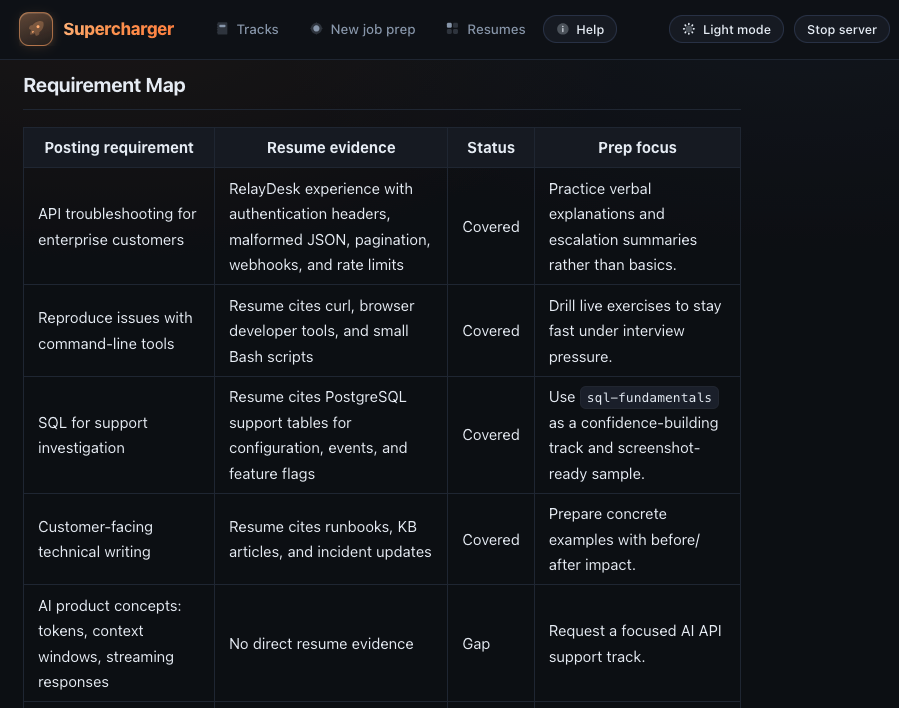
-
Generate. In your assistant, from the repo root:
Generate the prep for preps/acme-tse/.Or, in Claude Code or Gemini CLI, use the repo’s slash command:
/prep acme-tse(see Slash commands). -
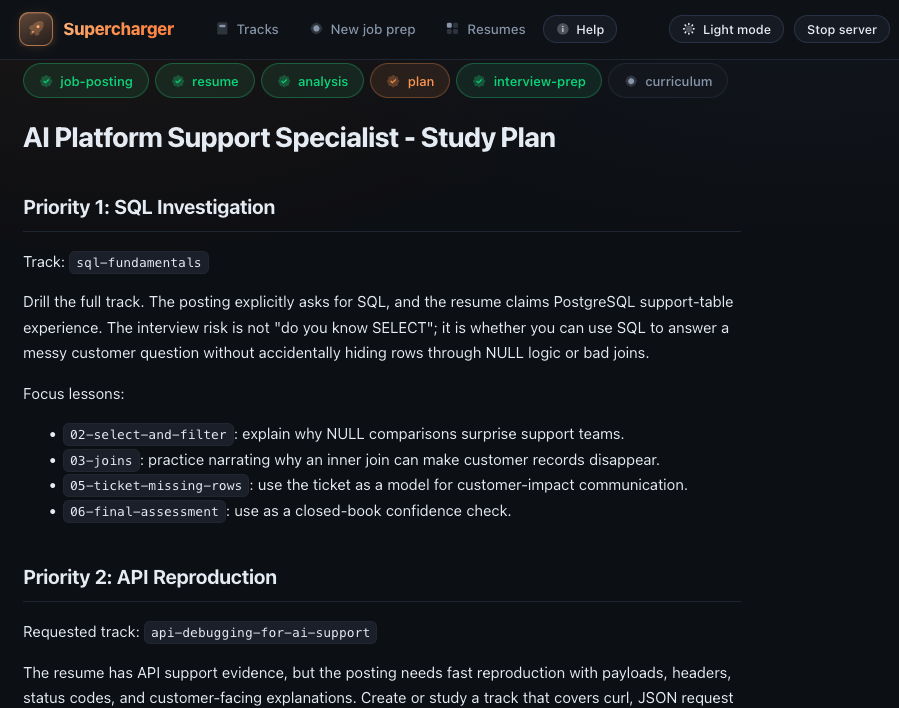
Study. The prep appears in the app as tabs, laid out in completion-flow order - inputs first, then the generated artifacts, then the study view. Each completed step’s tab fills green; generated artifacts that don’t exist yet show as dimmed, unclickable steps until the agent writes them, so the tab row doubles as a progress tracker:
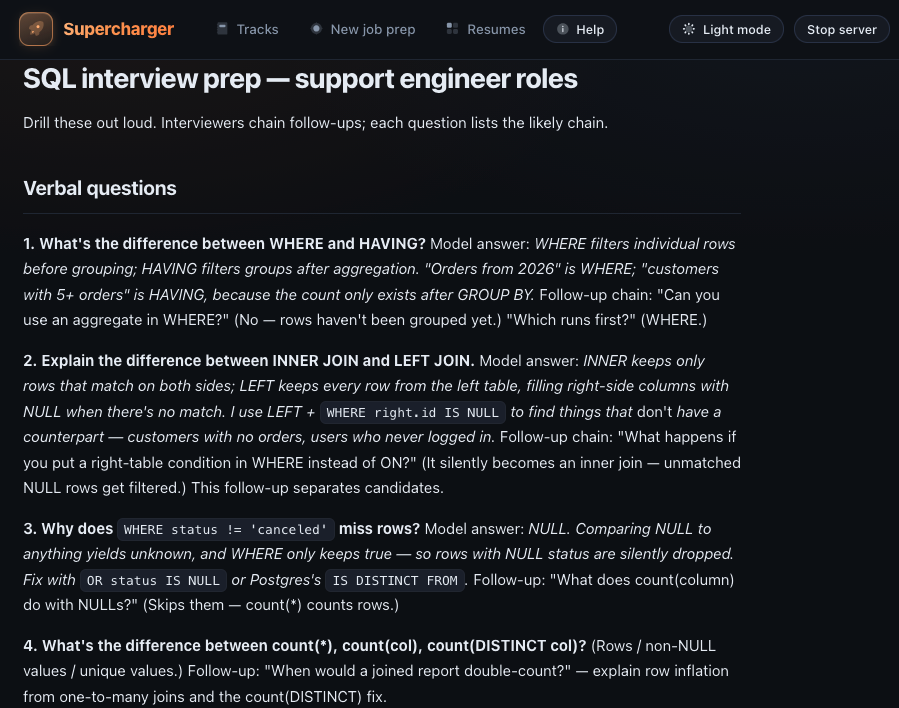
Tab (in order) What it gives you job-postingThe posting you pasted - the prep’s source of truth. resumeThe resume attached to this prep, plus controls to attach, replace, or save it to the resume library. Present (but not green) even when no resume is attached yet. analysisEach requirement broken into concrete skills. Inferred requirements are explicitly flagged (“posting says ‘identity providers’ - assuming Okta/SAML; confirm if you know their stack”) so you can correct assumptions early. planAn ordered study plan: which tracks/lessons cover each requirement, what to skim vs. drill, and new tracks generated for genuine gaps. interview-prepRole-specific: likely screen questions with model answers and follow-up chains, plus talking points read between the lines of the posting (their stack, their customer profile, what “log analysis” means at that company).
| curriculum | The suggested learning order across existing tracks and requested gap tracks. Existing tracks show progress and can be started immediately; requested tracks can be queued for an agent to create. Fills green only when every track in it is complete. |
Curriculum tab
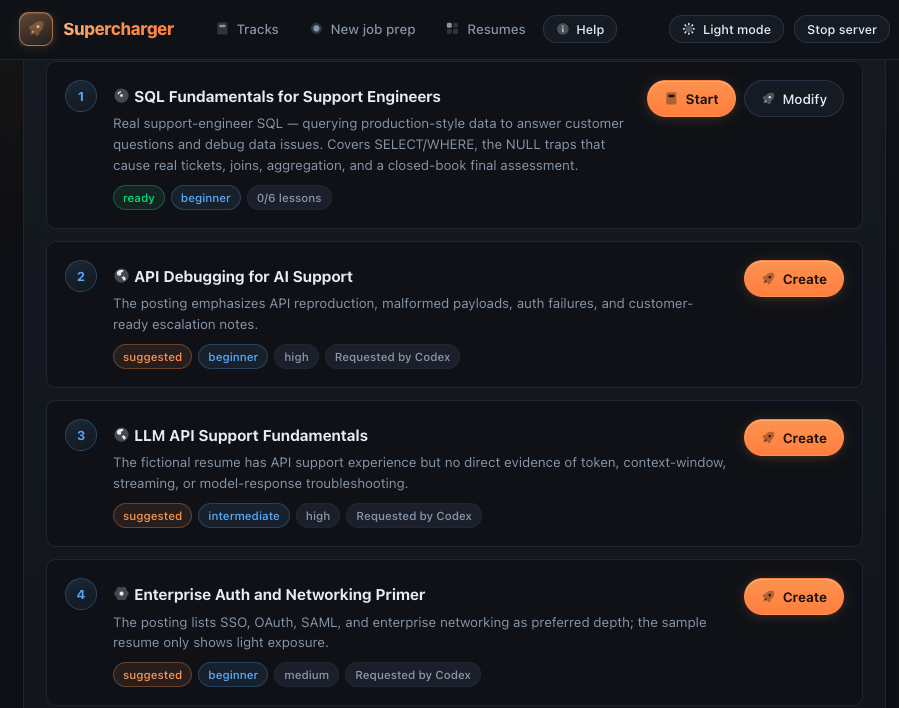
Section titled “Curriculum tab”The Curriculum tab is the operational view of a prep. It turns the written study plan into a sequenced checklist:
-
Existing tracks show lesson progress and a Start button. When every lesson in the track is complete, the curriculum marks it complete.
-
Suggested gap tracks show a Create button. Clicking it marks the request as
creating, changes the button to Queued for agent, and shows a copyable prompt. Paste that prompt into Codex, Claude Code, Gemini CLI, or another assistant from the Supercharger project folder. The GUI does not choose or launch an AI client for you. -
Ready tracks switch to Start as soon as the track exists on disk.
-
Modify queues a change request for an existing track - useful when a learner wants a revised version before retaking, or when a generic track should be tuned toward this job. The form asks what should change, where the change should land, and the target level:
- Update the shared track changes it for everyone, including other preps that use it.
- Make a copy for this prep forks the track (e.g.
how-to-use-curl-acme-tse), leaves the original - and other preps’ progress - untouched, and repoints this prep’s curriculum at the copy.
Supercharger picks a sensible default: fork when the track belongs to or is used by another prep (the form names those preps), update in place when the track is this prep’s own. If the prep generation spotted a job-specific tuning opportunity, the form shows it as a one-tap Suggested for this job chip drawn from the posting.
After submitting, the card shows Modification queued for agent with a copyable prompt, exactly like track creation.
-
Tuned-for tags. A track modified for a prep shows a tuned for this prep pill in that prep’s curriculum (and on the track page). If a shared track was tuned for a different prep, the pill names it - so you know the content has been slanted toward someone else’s job description.
-
Add track lets the learner suggest a new topic, such as “how to use curl.” Supercharger inserts that request into the curriculum so an agent can place it in the right study order.
-
Reorder lets the learner move tracks up or down when the sequence needs a human nudge.
-
Add docs lets the learner attach approved product docs or excerpts when company-specific fluency matters. Supercharger queues a docs-onboarding item so an agent can create a product map, glossary, support scenarios, and product-specific practice from those sources.
-
Confidence level lets the learner choose beginner, intermediate, or advanced before requesting a track. Beginner tracks define jargon before using it; advanced tracks skip basics and focus on edge cases.
-
Go deeper appears after a non-advanced track is complete. It queues an advanced follow-up based on the completed track. Advanced tracks do not get another deeper suggestion, because the goal is mastery without endless track sprawl.
Supercharger does not secretly launch Codex, Claude Code, or Gemini from the
browser. The app writes a file-based handoff (curriculum.json and
track-requests.json, plus onboarding-requests.json for product docs) that
any agent can read and act on. That keeps the platform provider-neutral and
makes the state inspectable in Git.
The normal handoff looks like this:
From the cloned Supercharger project folder, create the requested tracks marked creating in preps/<prep-id>/track-requests.json.Follow SPEC.md and include createdBy and sourcePrep in each track.yaml.Track modifications use a variant of the same handoff (shown on the queued
card): it tells the agent to honor each request’s notes, target level, and
mode - updating in place or copying to the fork id - and to flip the request
back to created when done.
While anything is queued, the Curriculum tab polls every few seconds and updates itself when the agent finishes - Queued for agent becomes Start without a manual refresh.
Deleting a prep
Section titled “Deleting a prep”Delete prep (in the prep page’s header, next to the title - visible from
every tab) removes the prep folder -
posting, analysis, plan, interview prep. Before deleting, it lists every
track that was created for or tuned for this prep with a checkbox each,
so you can keep all, some, or none of them. Tracks default to kept;
anything also used by another prep is flagged (“careful: also used by
…”) before you check it. Your progress.json is never touched.
Resume tab and the resume library
Section titled “Resume tab and the resume library”Every prep has a Resume tab, even before a resume is attached. From it you can:
- Attach a saved resume from the library via the dropdown, or paste one that applies to this prep only.
- Replace the attached resume the same way. After replacing, re-run the prep generation if you want the gap analysis updated.
- Save to resume library to promote a pasted resume so it appears in the saved list on every prep and on the New job prep screen.
The Resumes page (top navigation) is the library itself: save a resume
once under a name like ios-engineer-2026, then reuse it across preps instead
of pasting it every time. Each prep gets its own copy of the resume on disk
(preps/<prep-id>/resume.md), so editing or deleting a saved resume never
touches existing preps.
Why attach one at all: without a resume the prep treats every requirement as a
gap to study. With one, analysis.md separates covered by your experience
from genuine gap, and plan.md spends your time only on the gaps.
Getting better preps
Section titled “Getting better preps”- Add context. Tell the assistant what you know about the company, the recruiter call, or the interview format - the prep sharpens accordingly.
- Correct the assumptions. If
analysis.mdguessed SAML and the company uses OIDC, say so and regenerate the affected parts. - Mind the scope. Gaps can mean new full tracks. The agent contract tells assistants to ask before generating more than one large track, so you stay in control of the time budget.
- Use the curriculum as the source of truth. If the written plan and the
Curriculum tab drift, ask the assistant to reconcile
plan.md,curriculum.json, andtrack-requests.json. - Reorder for scaffolding. If a prerequisite track lands too late, move it earlier. If the whole sequence feels wrong, ask the assistant to optimize the curriculum order instead of manually guessing every dependency.
- Approve docs intentionally. Product docs can be large and uneven. Add the pages or excerpts that matter for the role, then ask the assistant to skip irrelevant docs and flag assumptions.
- Set the learner level honestly. If a topic is new, choose beginner even if the role is senior. Beginner does not mean easy; it means the lesson should teach vocabulary before expecting it.
Before the screen
Section titled “Before the screen”Drill the track-level interview-prep.md question banks for every skill the
plan flags, then take each relevant track’s closed-book final cold. Passing
those is your evidence for an honest “yes, I can do that” in the interview.
For a fuller example, see the Product Support Specialist case study.
For a deeper walkthrough of the docs flow, see Product docs onboarding.